


Three ways a Jira space ends up more open than you meant
Also published on Atlassian Community
In this guide
Most overexposed Jira spaces were never opened on purpose. Someone copied a permission scheme from a space that was meant to be public, or picked "Any logged in user" because the right group did not exist yet, or shared a dashboard with the public for a single demo. Each choice made sense at the time.
AccessRadar is an access review app for Jira Cloud from Radrly. This guide covers the three kinds of open to check for, how each happens, and how to find it with what Jira gives you. The app part is short and comes last.
1. Public grants in a permission scheme
How it happens. In a permission scheme, the grantee Public covers anyone, including people who are not logged in. Atlassian's page Use permissions to make a space publicly visible explains that Browse spaces set to Public lets anyone view the space and its work, and Create work items set to Public lets anyone create a work item, shown with "Anonymous" as the reporter. Only sites on the Standard, Premium or Enterprise plan can open spaces to the public.
How to check. Go to Settings > Work items > Permission schemes, open each scheme that is in use, and look for Public next to Browse spaces, Create work items and the comment and attachment permissions.
Watch out for. The same Atlassian page describes a known bug: granting Browse spaces to Reporter, Current assignee or a user or group custom field lets any logged in user see the space name in the space directory and in search, though not the work items.
2. Grants to everyone with Jira access
How it happens. The grantees Any logged in user and Application access (anyone with access to an app) are convenient when a group is missing. In a site with hundreds of licensed users, Browse spaces granted this way means every one of them can open the space. The list of grantee types is in Grant or revoke permissions in a scheme.
How to check. Same scheme pages as above. For each grant, ask whether the space really is meant for everyone in the company.
Watch out for. The scheme page names the grantee, but it does not tell you how many people that covers or which spaces share the scheme. You open Spaces and check each space's permission scheme to connect the two.
3. Filters and dashboards shared with the public
How it happens. Under Settings > System > General configuration, the Public sharing option lets users share filters and dashboards with the public. Under Default user preferences, the default access can even be set to Public for every new filter and dashboard.
How to check. In Settings > System, open Filters and then Dashboards. Items visible to the public show "Shared with the public". Change their visibility from the filter or dashboard itself. Atlassian notes that turning Public sharing off stops new sharing but does not restrict anything already shared. See View which filters and dashboards are shared publicly.
The routine, in short
Once a quarter: scan every scheme in use for Public, Any logged in user and Application access grants; map those schemes to spaces; then review the shared filters and dashboards lists. On a site with dozens of schemes, the first two steps take the longest.
Where AccessRadar helps
AccessRadar takes snapshots of permission schemes, roles and groups and resolves who can do what in each space, with the path that grants it.
Three of its fourteen risk rules map to the three kinds of open: Anonymous access (High), for permissions granted to "Anyone", including people who are not logged in; Broad application-role grants (Medium), for key permissions granted to everyone with access to a Jira application; and filters or dashboards shared with anyone (High). AccessRadar shows the Public grantee as "Anyone (anonymous)".
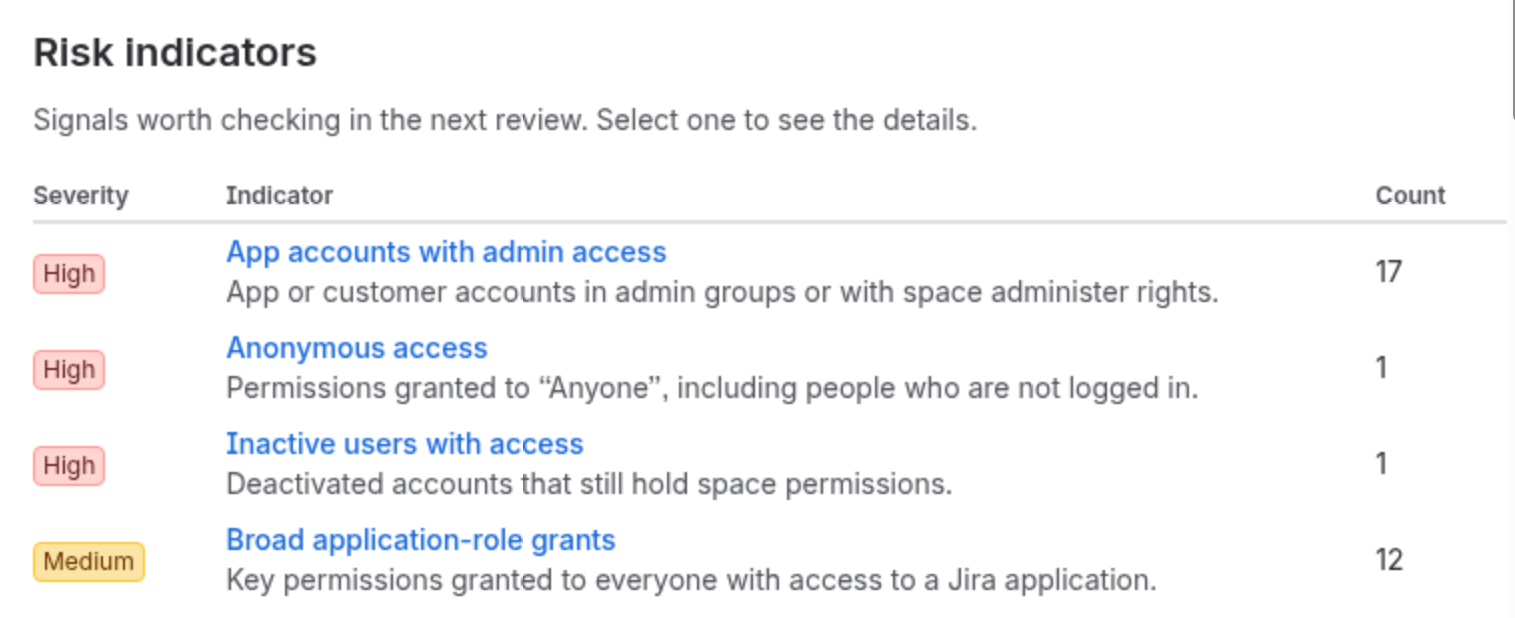
Select an indicator to see each grant with its space, permission and the scheme it comes from, so the scheme to space mapping is already done. The Sharing and security page lists filters and dashboards shared with anyone or with all signed-in users, read live from Jira.
Comparing two snapshots shows new grants and public or broader access since the last one. The risk rules, Sharing and security, space view and snapshot comparison are in Standard. Advanced adds daily snapshot schedules and an in-app alert when anonymous access appears after a snapshot.
One limit: AccessRadar only reads. You change the scheme, filter or dashboard in Jira yourself.
Quick answers
How can a Jira Cloud space become visible to people who are not logged in?
In a permission scheme, the grantee Public covers anyone, including people who are not logged in. Browse spaces set to Public lets anyone view the space and its work, and Create work items set to Public lets anyone create a work item, shown with Anonymous as the reporter. Only sites on the Standard, Premium or Enterprise plan can open spaces to the public.
Why are Any logged in user and Application access grants risky?
They cover everyone with Jira access. In a site with hundreds of licensed users, Browse spaces granted this way means every one of them can open the space. The scheme page names the grantee, but it does not tell you how many people that covers or which spaces share the scheme.
How do you find filters and dashboards shared with the public in Jira Cloud?
In Settings > System, open Filters and then Dashboards. Items visible to the public show Shared with the public, and you change their visibility from the filter or dashboard itself. Turning off Public sharing under General configuration stops new sharing but does not restrict anything already shared.
Which AccessRadar risk rules cover these three kinds of open access?
Anonymous access (High), Broad application-role grants (Medium) and filters or dashboards shared with anyone (High). The Sharing and security page lists filters and dashboards shared with anyone or with all signed-in users. AccessRadar only reads, so you change the scheme, filter or dashboard in Jira yourself.